GPT Image 2.6 AI Image Generator for Creative Maker
Bring a product idea, campaign brief, or imagined scene to OpenMaker as you explore GPT Image 2.6. The image form currently uses GPT Image 2.5 Flare by default.
GPT Image 2.6 Animation Examples
See how GPT Image 2.6 animates a character’s reactions and brings an owl sketch to life. The form on openmaker.si currently uses GPT Image 2.5 Flare.
Anime Reactions
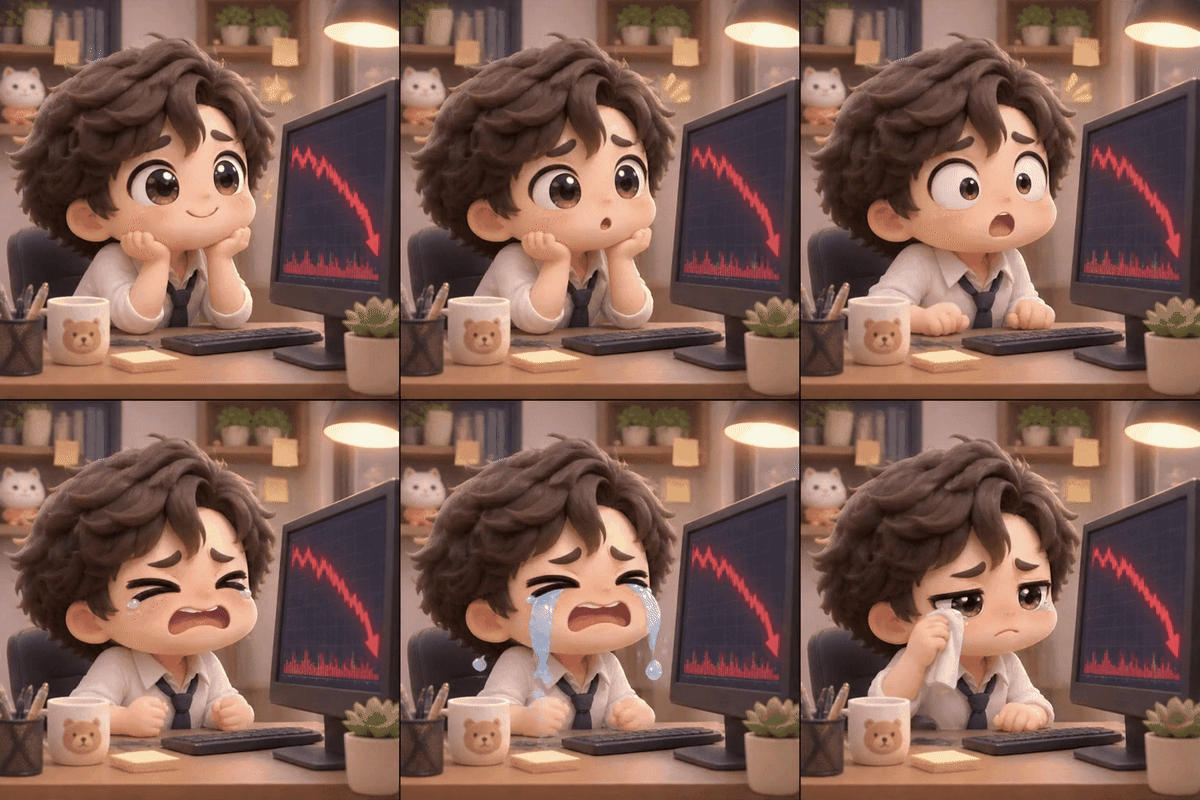
An office worker reacts as the stock chart drops.
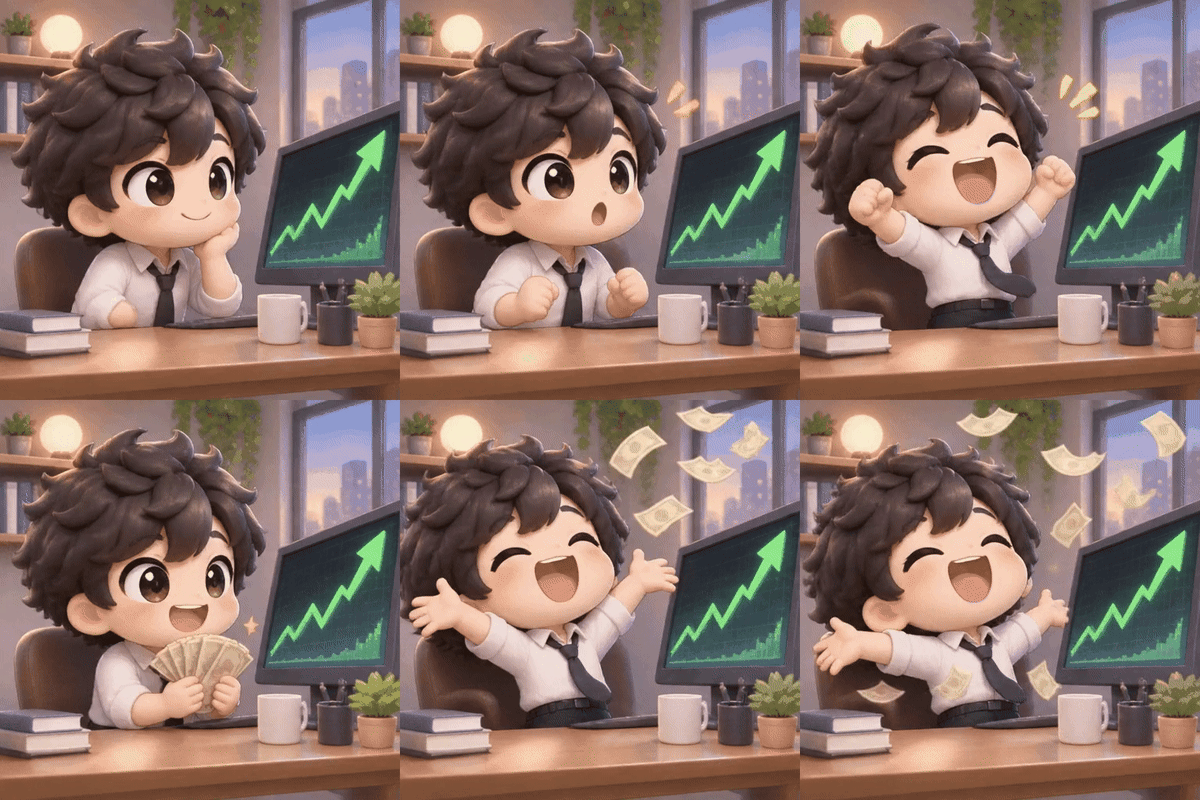
The same worker celebrates as the stock chart climbs.
Owl Sketch and Animation
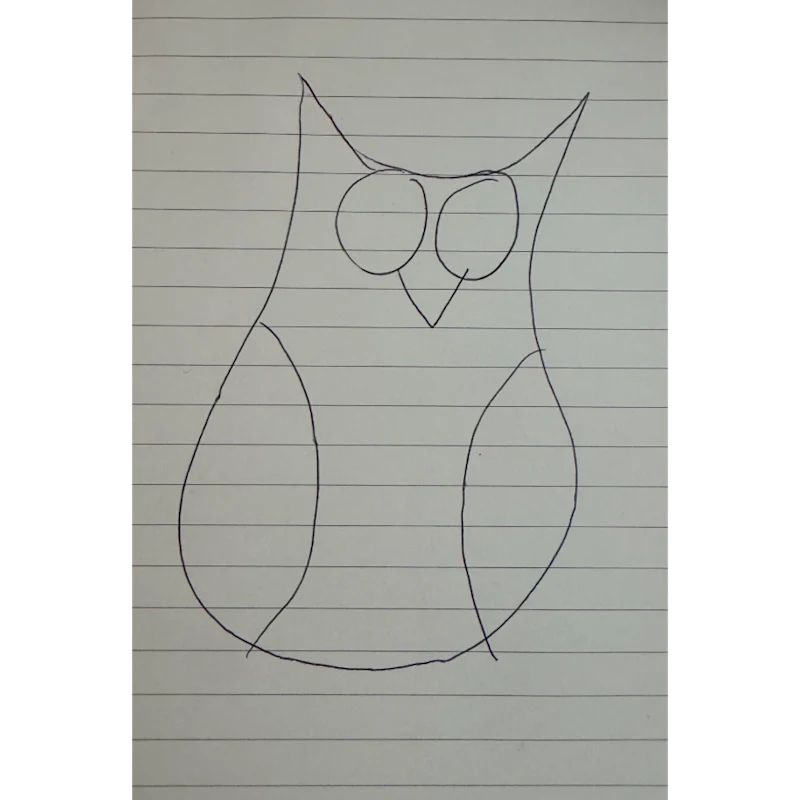
An owl drawn in pen on lined paper.
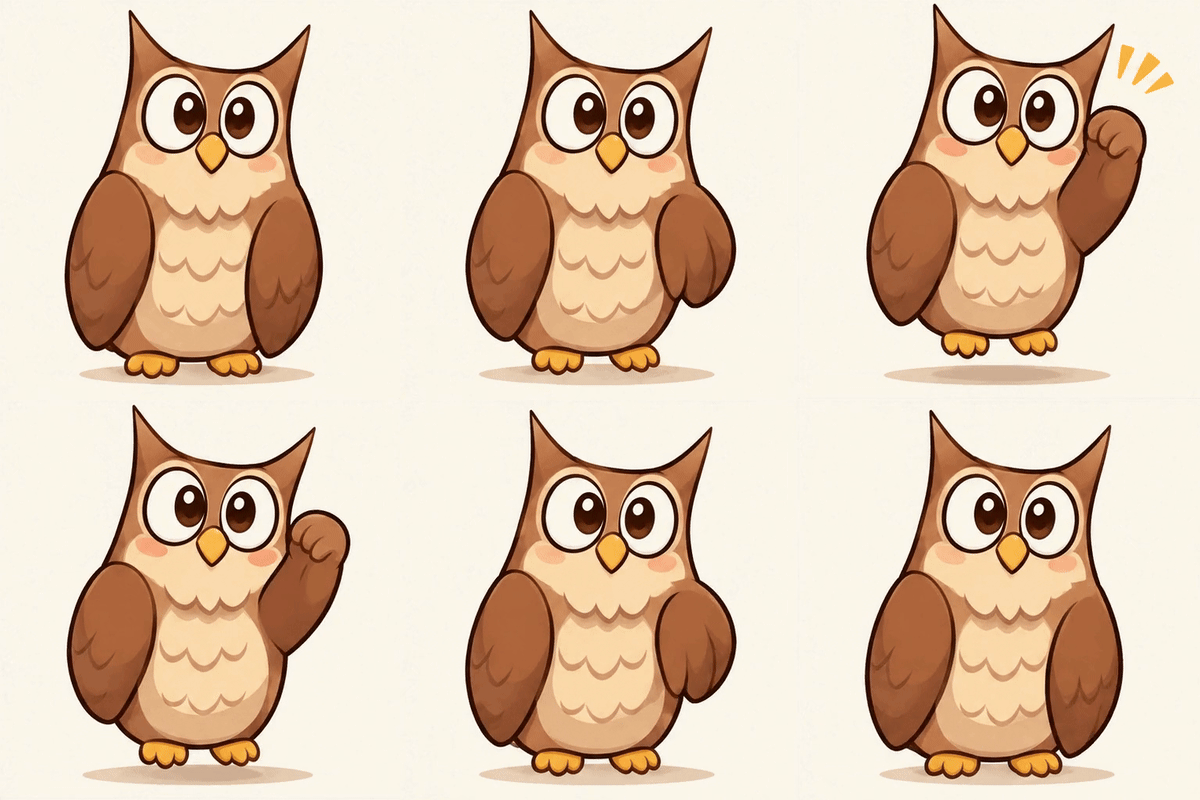
A hand-drawn owl comes to life in a looping animation.
Understand GPT Image 2.6 Through Inputs and Creative Direction
Separate the documented model capabilities from the options in your current generator, then build an image request around a precise description.
Learn the Flare and Sunburst Roles
The official 2.6 catalog describes interactive image workflows for Flare and detailed compositions for Sunburst, with text and image inputs for both.
Set the Object and Its Surroundings
Describe a product concept together with a tabletop, room, or outdoor setting to guide the generated scene.
Specify Viewpoint and Composition
Tell the generator whether you want a close-up, overhead view, or wider arrangement, and identify the visual focal point.
Adjust the Available Output Settings
Choose from the ratio and resolution options displayed for the selected image model before submitting your request.
Use GPT Image 2.6 Research to Prepare More Useful Creative Briefs
A structured image prompt helps you evaluate a concept, communicate feedback, and decide which visual direction deserves another generation.
Make the Brief Easy to Review
List the object, environment, and framing in a single prompt so collaborators can discuss the same intended image.
Explore a Scene Before Producing It
Generate a visual draft from your description to evaluate staging ideas before arranging a physical shoot.
Tie Revisions to a Specific Decision
Change the surface, backdrop, or viewpoint in your prompt when you want to test one creative choice.
Check the Actual Model Before Submitting
OpenMaker initially selects GPT Image 2.5 Flare on this page. Review that selection and the displayed settings for each image request.
Plan Product, Packaging, and Campaign Images Alongside GPT Image 2.6
Use the current image form to visualize these briefs, reviewing each generated draft against the details that matter for your project.
Stage a Product Display Concept
Describe an imagined product on a chosen surface with directional lighting to explore a presentation style.
Explore a Packaging Mood
Specify the package shape, material, and palette to generate a concept for design discussion, then verify any visible lettering.
Draft a Campaign Hero Scene
Build a prompt around one focal object and describe open space for the headline you will place in your design tool.
Compare Seasonal Art Directions
Keep the product description consistent while changing the seasonal setting in separate prompts to explore alternative scenes.
Prepare a GPT Image 2.6 Brief and Generate on OpenMaker
Start with a written concept and use the available 2.5 Flare generator to check how your staging, framing, and setting translate into an image.