Free GPT Image 2 AI Image Generator for Text and Photo Edits
Turn a visual brief into an image or edit a reference photo with Free GPT Image 2 on OpenMaker. Describe your subject, layout, and style, then choose an aspect ratio. Explore unlimited generations, 100% free with no signup required.
GPT Image Tools and API Access
Choose a free GPT Image page for browser-based creation, or follow the Flaq API entry for OpenAI GPT Image model access. API usage is priced separately from the free browser tool.
Explore the 2.5 Image Update
OpenAI describes improved detail, edit precision, and preservation of subjects across changes in 2.5. Try the free 2.5 generator with a prompt or one reference to explore those changes for your own visual brief.
Read OpenAI’s Images 2.5 introductionExplore Layout and Image Ideas with Free GPT Image 2
Browse image examples for composition, visual style, and subject placement. Use a written brief or reference photo to explore a similar direction for your own project.
Example 1
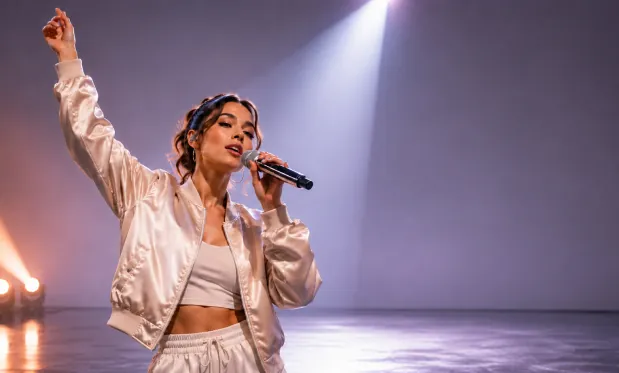
Product Showcase Image
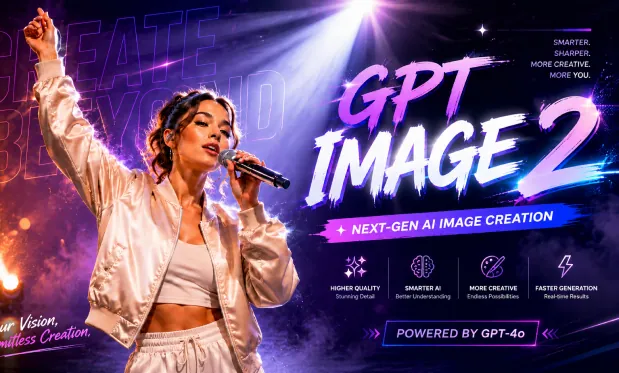
Product Showcase Image
Example 2
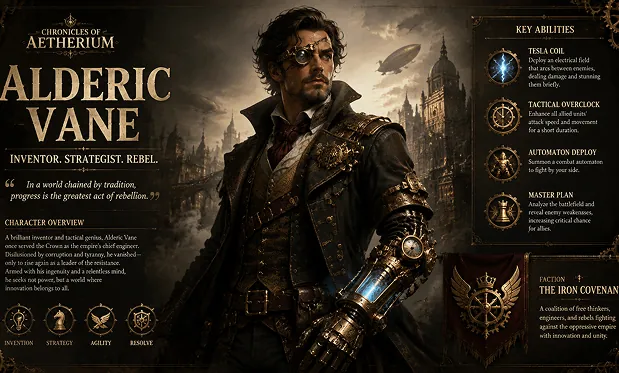
Cinematic AI Scene
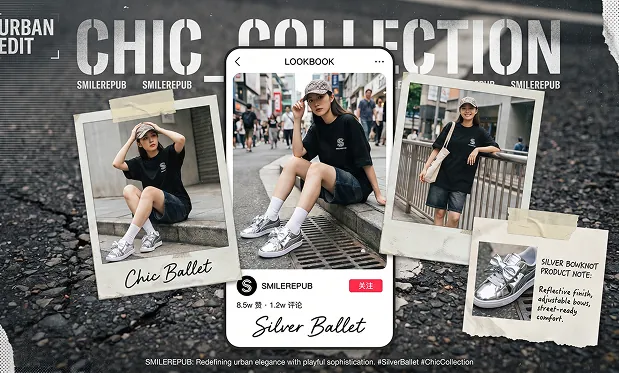
Cinematic AI Scene
Guide Image Content and Composition with Free GPT Image 2
Use text to describe a new scene, add a reference for an edit, and select the frame shape. These inputs let you develop an image around a specific visual brief.
Build Images around a Written Brief
Specify the subject, setting, materials, and lighting. Include where key objects should sit so the generated composition has a clear visual hierarchy.
Request Changes to a Reference Image
Upload a reference and describe a new background, style, or object detail. Identify the parts of the source you want to keep when asking for a variation.
Plan Space for a Headline
Describe a poster or banner layout with room for a title. If you request words inside the image, include the exact wording and inspect it after generation.
Set the Frame before Generating
Choose an available aspect ratio for a square post, portrait layout, or wide composition. Frame shape helps direct where the subject and surrounding space fit.
Refine Your Visual Brief with Free GPT Image 2
Develop your visual brief with Free GPT Image 2 on OpenMaker. Create without signup or generation credits, refine the layout or prompt, and download the images that best express your idea.
Start a Draft without Signup
Use the browser form to turn a brief into a first image without creating an account. The free workflow gives you a starting point for visual review.
Try More than One Direction
Unlimited free generations let you explore different layouts and styles. Revise one part of the prompt at a time so each result helps inform the next choice.
Reuse a Visual Starting Point
A reference image lets you develop an existing concept instead of explaining it from scratch. Add clear editing instructions to steer the new version.
Review before Choosing a Final Image
Preview subject details, text, and object placement before downloading. Save the image that best fits the brief and refine anything that still needs work.
Develop Posters, Product Scenes, and Slides with Free GPT Image 2
Translate a content brief into an image concept for a campaign, product presentation, or lesson. Include the subject and layout requirements in your prompt.
Describe the event theme, visual subject, and space needed for a headline. Generate a poster concept and check any rendered words before using the design.
Draft an Event Poster
Add a product reference and request a new setting or lighting treatment. Use the generated image to discuss a campaign direction before preparing final assets.
Explore a Product Scene
Describe one focal subject, an expressive pose, and a simple background. Choose a wide ratio and inspect the result at thumbnail size.
Create a Video Thumbnail Concept
Turn a slide topic into a concrete scene, such as a person sorting recycled materials. Generate a supporting visual and review its accuracy before presenting.
Illustrate a Presentation Topic
Explore Free GPT Image 2 Image Ideas on X
Browse shared image examples for prompt and editing inspiration. Use your own subject and instructions to explore a new image.
How to Generate with Free GPT Image 2 on OpenMaker
Describe the image or edit, optionally add a reference, and choose an aspect ratio. Generate the picture, check the details, and download your preferred result.